Payments
How to Take Payments on WhatsApp in India: WhatsApp Pay and UPI
Take payments inside WhatsApp chats in India: WhatsApp Pay with Razorpay, PayU, BillDesk or Zaakpay, or a UPI ID, plus catalog orders.
By the Repeat Grow team · · 7 min read
Most Indian customers already ask for prices, sizes and availability on WhatsApp. The awkward part used to be the last step: sending a UPI QR code, waiting for a screenshot, and checking it against your bank app. You can now do the whole thing inside the chat, an order summary, a payment request and automatic status updates. Here's how it works and how to set it up in Repeat Grow.
Why take payments inside the chat
- Fewer drop-offs. The customer decides and pays in the same conversation, not after switching apps.
- No screenshot matching. Each order has its own reference, so payments map to the right order.
- One record. The chat, the order and the payment status live on the same contact, visible to the whole team.
Two ways to get paid: WhatsApp Pay or UPI ID
In Settings → Orders & payments you choose how customers pay:
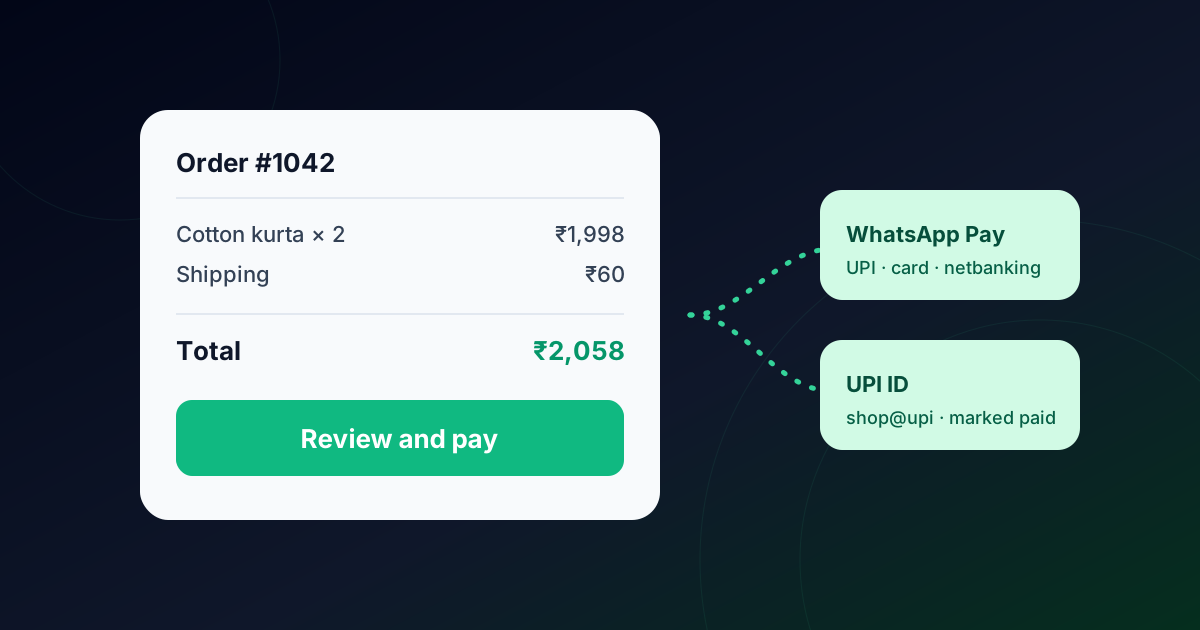
- WhatsApp Pay. The customer taps Review and pay and pays with UPI, card or netbanking without leaving WhatsApp. It uses a payment configuration you create in WhatsApp Manager with Razorpay, PayU, BillDesk or Zaakpay. Payment status is confirmed automatically.
- UPI ID. The customer gets an order summary with your UPI ID and pays from any UPI app. An agent marks the order as paid. It needs no gateway and is the quickest way to start.
Setting up WhatsApp Pay
- Make sure Meta's Payments API for India is enabled for your business.
- In WhatsApp Manager → Account tools → Payment configurations, link your Razorpay, PayU, BillDesk or Zaakpay account and name the configuration.
- In Repeat Grow, open Settings → Orders & payments, choose WhatsApp Pay, pick the gateway and enter the configuration name.
- Nothing extra to subscribe: payment updates arrive on the webhook you already use for messages.
Setting up the UPI ID option
Choose UPI ID in the same settings page and enter your UPI ID. That's it. Orders you send will include the summary and the ID, and your team marks them paid from the order controls once the money arrives.
Sending an order from a chat
- Open the conversation and click the ₹ icon in the chat.
- Add the items with quantity and price, plus tax, shipping and any discount.
- Send the payment request. The customer sees the total and a way to pay.
- Follow the status in the chat and in the list of recent orders in Settings → Orders & payments.
A short message to go with it keeps the chat friendly, for example: “Thanks, Priya! I've sent your order for 2 cotton kurtas. Tap Review and pay to complete it, and I'll confirm dispatch as soon as it's done.”
Catalog sharing and catalog orders
If you sell products, create a catalog in Commerce Manager, connect it to your number in WhatsApp Manager → Catalog, and paste the catalog ID in Repeat Grow. From any chat you can share the whole catalog or a single product. When a customer sends a cart, it becomes a pending order automatically, ready for your payment request.
Keep customers updated after payment
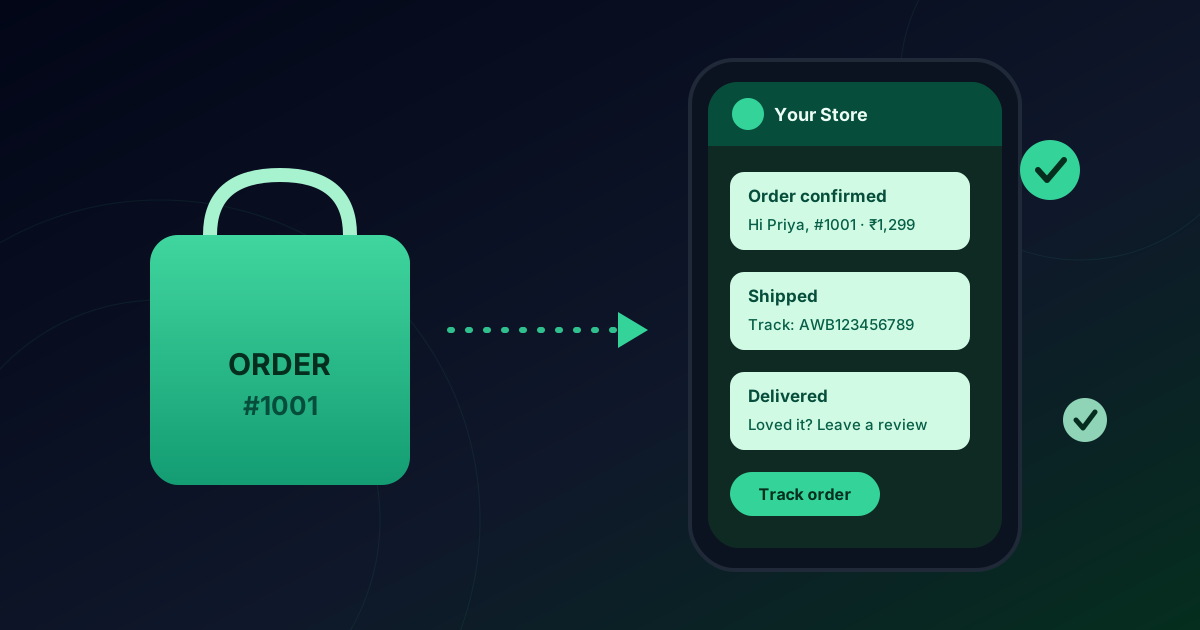
An order moves through processing → shipped → delivered (or cancelled). Each time you change the status, the customer is told: WhatsApp Pay orders get an order status card, and other orders get a short text message. That removes most “where is my order?” messages before they start. For Shopify stores, the Shopify order notification guide covers automatic shipping and delivery messages.
Tips for more paid orders
- Reply fast and send the payment request in the same chat. Interest fades quickly.
- Double-check the total before sending: items, shipping and tax.
- Use saved replies for the usual questions, so agents can send the order and the explanation in seconds.
- Never ask customers for card details or OTPs in the chat. Payments happen only through Review and pay or their own UPI app.
Step-by-step screens are in the Orders & payments section of the Help Center.
Frequently asked questions
Do I need a payment gateway to take payments on WhatsApp?
For WhatsApp Pay, yes: you link a Razorpay, PayU, BillDesk or Zaakpay account to a payment configuration in WhatsApp Manager. No gateway keys are stored in Repeat Grow. If you don’t have one, use the UPI ID option, where the customer pays your UPI ID and an agent marks the order paid.
How does Repeat Grow know an order was paid?
With WhatsApp Pay, payment updates arrive on the same WhatsApp webhook and mark the order paid, failed or refunded automatically using the order’s reference ID. With a UPI ID, an agent marks the order paid after seeing the payment.
Can customers order from my catalog?
Yes. Create a catalog in Commerce Manager, connect it to your number, and paste the catalog ID in Settings → Orders & payments. You can share the whole catalog or one product in a chat, and carts customers send become pending orders automatically.
Which currency and amounts are used?
Orders are in Indian rupees by default. Amounts are stored in paise internally so totals never suffer rounding errors.
Are WhatsApp Pay and the catalog available outside India?
WhatsApp Pay through these gateways is India-specific, and Meta’s Payments API for India must be enabled for your business. The UPI ID option works for any Indian business that takes UPI payments.