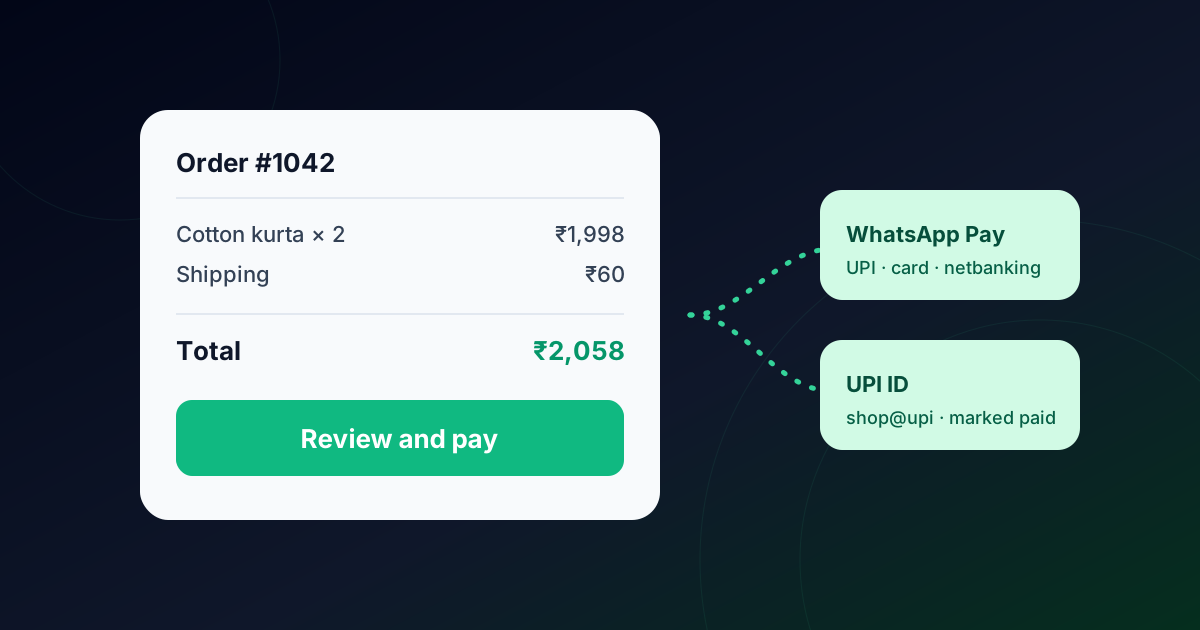
E-commerce
Shopify WhatsApp Order Notifications: The Complete Guide for Indian Stores
The six WhatsApp messages every Shopify store should send, from order and COD confirmation to delivery and abandoned cart, with templates.
By the Repeat Grow team · · 9 min read
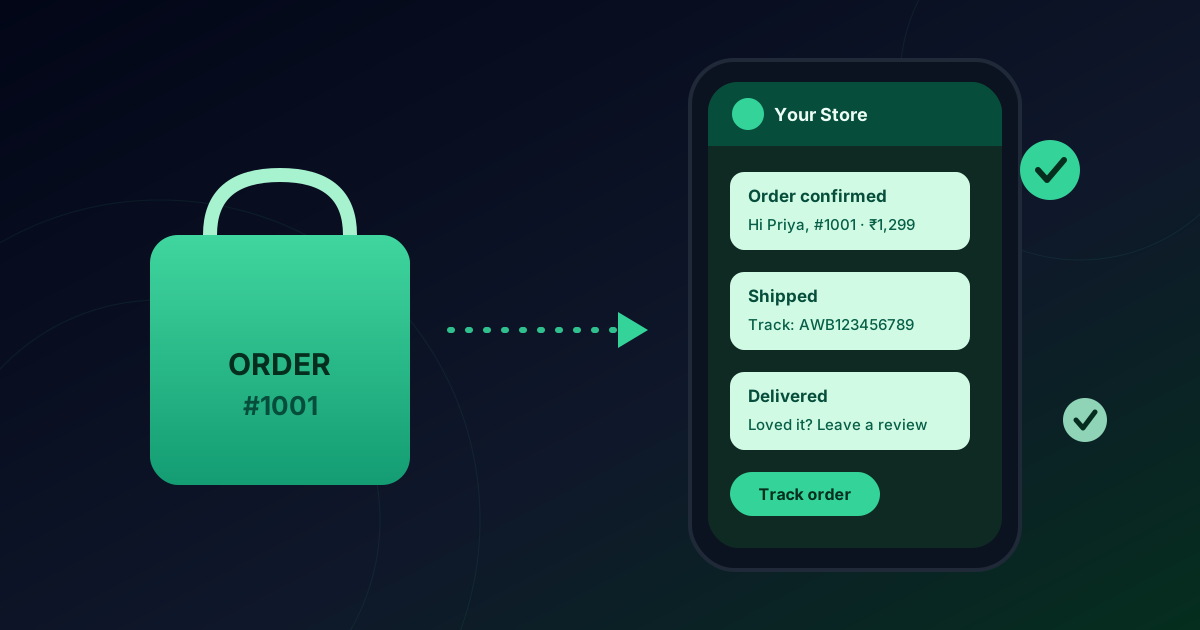
Your customer just paid. Now they wait and wonder. Is the order confirmed? When will it ship? Where is it now? Most stores answer those questions by email, but for a lot of Indian shoppers the inbox they actually check is WhatsApp. This guide covers exactly which WhatsApp messages a Shopify store should send, what each template should say, the rules that keep your number in good standing, and how to automate the whole thing in about fifteen minutes.
Why order updates belong on WhatsApp
Order updates are the messages customers want. They reduce “where is my order?” calls and chats, they make cash-on-delivery customers more likely to accept the parcel, and every message is a chance to bring the customer back. Sending them on WhatsApp has three practical advantages:
- It's where customers already are. A WhatsApp message sits next to chats with family and friends, not in a promotions tab.
- Customers can reply. “Can you deliver after 6?” lands in your team inbox instead of a no-reply address.
- You can see what happened. The official API reports delivered and read status for every message.
The 6 messages every store should send
Map your WhatsApp messages to the moments Shopify already tracks. Each one is triggered by a Shopify event, so once it's set up nobody on your team has to press send.
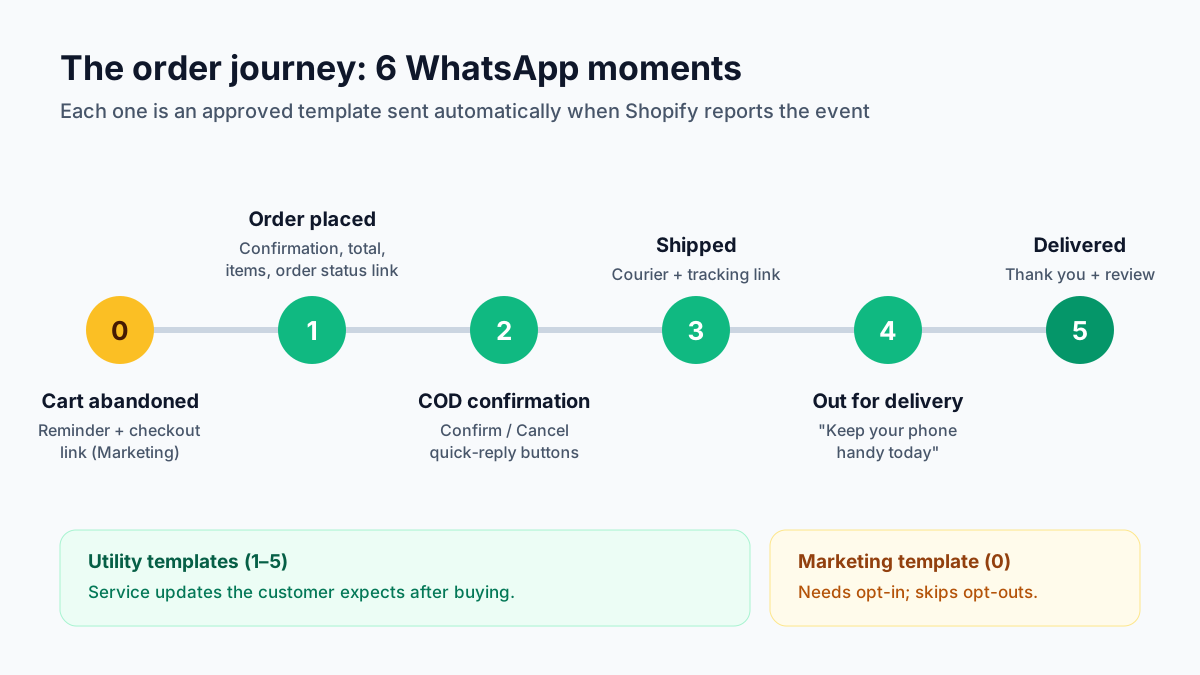
| Message | Shopify event | Category |
|---|---|---|
| Order confirmation | Order creation | Utility |
| COD confirmation (Confirm / Cancel buttons) | Order creation, cash on delivery | Utility |
| Shipped, with courier and tracking link | Fulfillment creation | Utility |
| Out for delivery | Fulfillment update (carrier status) | Utility |
| Delivered, with a review request | Fulfillment update (carrier status) | Utility |
| Abandoned cart reminder | Checkout creation / update, then idle | Marketing |
You don't need all six on day one. Start with the order confirmation and the shipped message. They answer the two questions customers ask most, then add the rest.
Template examples you can copy
Business-initiated WhatsApp messages must use a template that Meta has approved. Variables like {{1}} are filled from the order each time. Keep templates short, specific and clearly about the order; that's what gets them approved as Utility. (More on approvals in WhatsApp template rules explained.)
order_confirmationUtility
order_shippedUtility
order_deliveredUtility
cart_reminderMarketing
In Repeat Grow you map each {{n}} to a store value (customer first name, order number, total, items, tracking link, courier, order status link or checkout link) and see a live preview before switching the message on.
COD confirmation: fewer refused deliveries
Cash on delivery is popular in India, and every COD parcel that comes back unaccepted costs you shipping both ways. A COD confirmation message asks the customer to confirm the order before you ship it:
cod_confirmationUtility
Add two quick-reply buttons to the template. When the customer taps one, the reply lands in your inbox and can trigger an automation, for example, tag the contact “COD confirmed” or alert your team to call the ones who cancelled. Ship the confirmed orders first; follow up on the silent ones before dispatch.
Rules to follow (so your number stays healthy)
- Use the right category. Don't dress a promotion up as a Utility template; Meta rejects it, and it's the fastest way to lose trust.
- Get opt-in for marketing. Abandoned-cart reminders and offers need the customer's permission: a WhatsApp opt-in checkbox at checkout works well.
- Honour opt-outs. When a customer replies STOP or taps “Stop promotions”, stop marketing messages to them. Repeat Grow does this automatically.
- Send one message per event. Duplicates annoy customers and hurt your number's quality rating: make sure retries from Shopify are de-duplicated.
- Fix phone numbers. Add +91 to numbers saved without a country code, or the message never arrives.
How to set it up with Repeat Grow
- Connect WhatsApp. Sign up and connect your number on the official WhatsApp Business API in Settings → WhatsApp.
- Create your templates. In Settings → Templates, create the templates above (Utility for order updates, Marketing for cart reminders) and submit them to Meta.
- Connect your store. In Settings → Shopify, click Connect Shopify, or choose Connect with webhooks and paste your store's webhook signing key. Repeat Grow lists exactly which webhooks to add.
- Map each event. Switch on the events you want, pick the approved template, choose what fills each variable, and use Send test to see the real message on your phone.
- Watch it work. Every message appears in your shared inbox and in the “Recent messages” log, with a reason if anything was skipped.
Selling to other industries too? See how teams use WhatsApp CRM for e-commerce, and the Shopify section of the Help Center.
Launch checklist
- WhatsApp number connected on the official API
- Order confirmation and shipped templates approved (Utility)
- COD confirmation template with Confirm / Cancel buttons
- WhatsApp opt-in at checkout before turning on cart reminders
- Default country code set to 91
- A test order placed and the messages checked on a real phone
Frequently asked questions
Can I send Shopify order updates on WhatsApp without an app on my store?
Yes. Shopify can send webhooks (Settings → Notifications → Webhooks) to a WhatsApp CRM like Repeat Grow, which turns each event into an approved WhatsApp template. A one-click app connection does the same without creating webhooks by hand.
Do I need the official WhatsApp Business API?
For automated, business-initiated messages at scale, yes. The official API (Meta Cloud API) lets you send approved templates to customers, track delivery and read status, and avoid the ban risk of unofficial automation tools.
Which template category should order updates use?
Order confirmations, shipping, delivery and cancellation messages are Utility templates: they update the customer about something they already did. Abandoned-cart reminders and offers are Marketing templates and need the customer’s opt-in.
What if the customer typed their number without +91?
Indian checkouts often store numbers like "98765 43210". A good integration adds the country code from the shipping address (or your store’s default) before sending, so the message still reaches the customer.
Will customers get the same message twice?
They shouldn’t. Shopify retries webhooks if it doesn’t get a quick response, so the integration must de-duplicate each event. Repeat Grow records every delivery and every send, so retries never produce duplicates.